Code snippets
How to Prevent Page Flicker in an A/B Test
★★★ Technical level 3 of 3
Written by Neil Webley · Last updated
Learn why A/B tests flicker and prevent flashes of original content with targeted page hiding, fast transforms and a safe reveal timeout.
Quick answer
A/B test flicker happens when the original page renders before experiment changes arrive. Prevent it by loading the testing tag early, hiding only the affected area with lightweight CSS, applying the assigned variant quickly, and providing both an immediate reveal and an independent safety timeout.
What causes flicker in an A/B test?
Flicker, sometimes called a flash of original content, occurs when a visitor briefly sees the control before JavaScript applies the assigned variant. It is most visible when a hero headline, image, price or layout changes after the browser has already painted it.
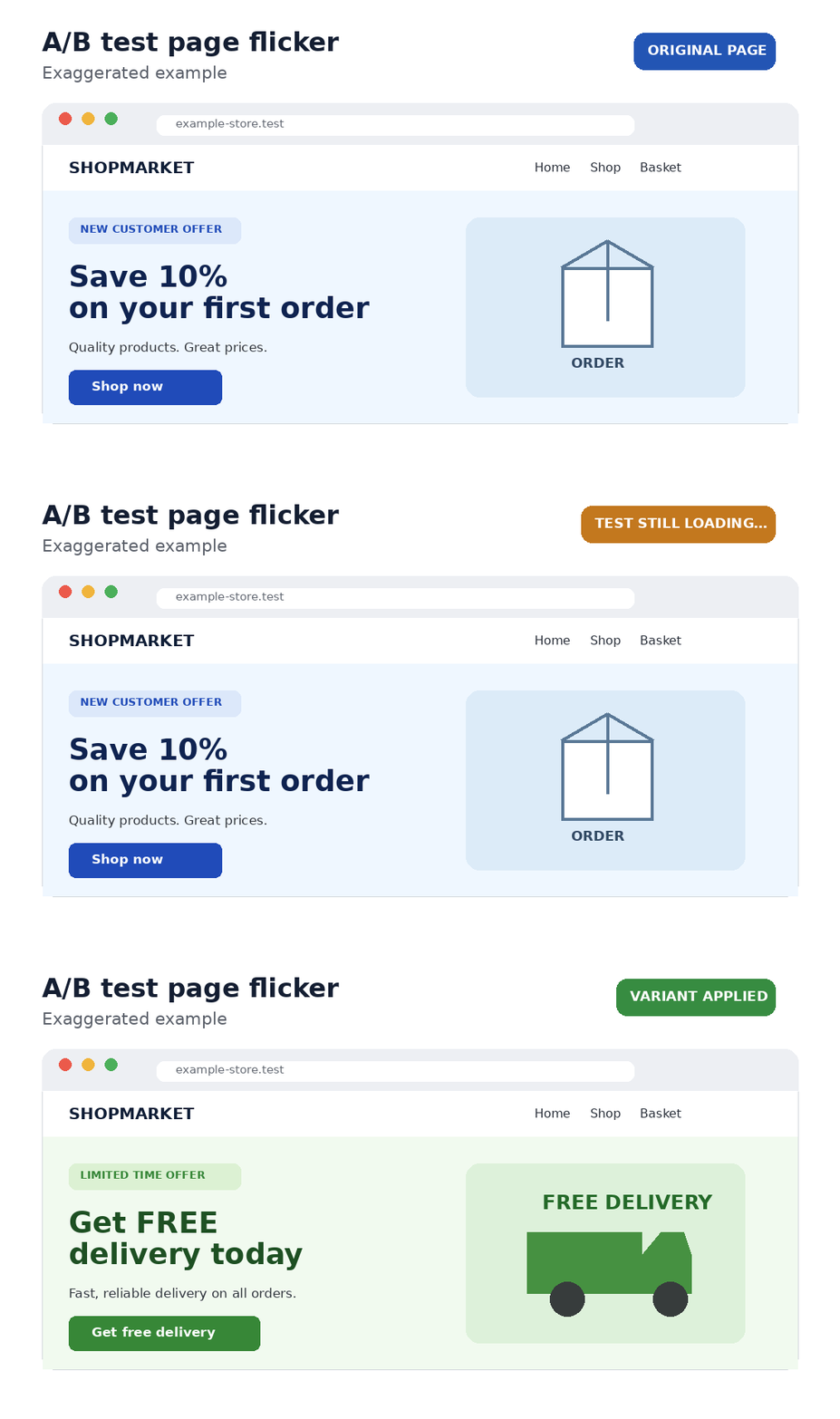
Common causes include a testing tag loaded near the end of the page, an asynchronous tag-manager chain, slow network requests, large experiment bundles, fragile selectors, and code that waits indefinitely for third-party content. Dynamic sites add another risk: the experiment may change an element, then the application rerenders and restores the original.
Flicker is not merely cosmetic. It can reveal the experiment, distract the visitor, cause layout movement and contaminate results if people react to seeing both experiences.
How to prevent page flicker
- Load the experiment tag early. Put the approved project tag in the document head where possible. Avoid unnecessary tag-manager dependencies before it.
- Hide narrowly. Hide the hero or component being transformed rather than the whole page. Navigation, consent and accessibility controls should remain usable.
- Keep variant code small. Move non-critical work out of the render path and avoid loading a large library for a simple text change.
- Use stable selectors. A selector that never matches leaves content hidden until the safety timeout.
- Reveal on every path. Reveal after success, no match, error and timeout.
- Test cold loads. A warm developer cache can hide problems real visitors experience.
A safe page-hiding pattern
Start the safety timeout independently from the transformation. If the transform succeeds first, reveal immediately; if it fails, the timeout still restores the content.
var hideId = 'fcro-hide---testID--';

cro_tests.hideElements(
  hideId,
  '.homepage-hero { visibility: hidden !important; }',
  1500
);

cro_tests.waitForElement('.homepage-hero__title', 1200)
  .then(function (title) {
    try {
      if (title) {
        title.textContent = 'A clearer value proposition';
      }
    } finally {
      cro_tests.revealElements(hideId);
    }
  });
visibility:hidden preserves layout space, whereas display:none can collapse the component and create a larger shift when it returns. Choose deliberately. Never hide content for several seconds simply to make the transition look perfect; a visitor seeing the control is generally preferable to an apparently broken blank page.
Do not hide the whole body by default
A whole-page anti-flicker snippet is easy to deploy but has the largest failure impact. It can conceal consent interfaces, cause a blank screen on slow connections and make assistive technology encounter an empty page. Use it only when the experiment genuinely changes most of the initial viewport and monitoring justifies the risk.
Prevent flicker with FreeCROTool
FreeCROTool projects support initial hide CSS and a hide timeout. In a hand-coded test, the code-snippet menu also provides Hide Page, Reveal Page and Reveal After Seconds. The generated identifier includes --testID--, which is replaced when the test is published.
For component-level changes, use cro_tests.hideElements(id, css, milliseconds) and cro_tests.revealElements(id). For a stylesheet added with addCSS, remove it with the identical ID. See the hand-coded helper reference, the guide to revealing as soon as changes finish, and the separate safety-timeout guide.
How to test whether an A/B test flickers
- Test control and every variant in Staging.
- Use a private window with cache disabled and CPU/network throttling.
- Record the first load in the browser Performance panel or a screen recording.
- Test direct visits, internal navigation, back/forward navigation and SPA route changes.
- Block the experiment request and introduce a JavaScript error: content must still become visible.
- Check narrow mobile screens, keyboard focus and screen-reader access.
- Measure layout shift and page responsiveness before and during the test.
A good implementation is not one where the variant always wins a race against the browser. It is one where the visitor quickly sees a stable page, and every failure mode leads back to visible, usable content.