Analytics snippets
How to Track A/B Test Button Clicks in GA4
★★★ Technical level 3 of 3
Written by Neil Webley · Last updated
Learn how to track button clicks with Google Tag Manager, GA4 or JavaScript, then measure A/B test clicks with FreeCROTool.
Choose what the click means before you track it
Button click tracking tells you that somebody interacted with an element. It does not necessarily tell you that they completed the intended outcome. A click on Start checkout, for example, is useful diagnostic information, while the completed purchase is normally the stronger conversion event.
Before implementing anything, write down the element, the page, the event name and whether the click is the test's primary KPI or a supporting measure. Use the same definition for the control and every variant so that the comparison remains fair.
Which method should I use?
| Situation | Recommended approach |
|---|---|
| Existing site using Google Tag Manager | GTM click trigger + GA4 event |
Site using gtag directly | JavaScript + gtag('event', ...) |
| Dynamically inserted button | Delegated click listener |
| FreeCROTool visual test | Click Conversion |
| FreeCROTool developer test | fireClickEvent() |
Does GA4 automatically track button clicks?
Generally, no. GA4 Enhanced Measurement can automatically record outbound link clicks and some other specific interactions, including file downloads. It does not automatically record arbitrary button clicks such as Add to basket, Start checkout or Sign up.
Enhanced Measurement also does not turn ordinary internal navigation links into click conversion events. Configure normal button and internal-link interactions separately with Google Tag Manager, JavaScript or a FreeCROTool Click Conversion. Check the existing GA4 event stream first so that you do not duplicate an event already implemented elsewhere.
How to track button clicks with Google Tag Manager and GA4
Google Tag Manager (GTM) can listen for a click and send an event to Google Analytics 4 (GA4) without adding a separate JavaScript listener to the page. The usual setup is:
- Enable GTM's built-in click variables, including Click Element, Click Classes, Click ID, Click Text and Click URL.
- Create a Click - All Elements trigger for buttons and other elements, or a Just Links trigger when the target is a link.
- Restrict the trigger to the intended element. A CSS selector or stable element ID is generally safer than visible text, which can change between variants or languages.
-
Create a Google Analytics: GA4 Event tag. Give it a stable event name such as
pricing_cta_clickand attach the click trigger. - Preview the container, click the element once and confirm that the trigger and GA4 event tag each fire once.
- Publish the GTM container, then verify the event in GA4 Realtime or DebugView.
A useful selector might be #start-checkout or [data-analytics="pricing-cta"]. Avoid broad conditions such as "Click Text contains Buy" if several elements can contain the same words. If the site replaces elements dynamically, test the selector again after the replacement occurs.
Recommended GA4 event names and parameters
Use a GA4 recommended event when it accurately describes the action. Otherwise, use a concise custom name made from lowercase letters, numbers and underscores. Do not put a person's name, email address, form value or other personal information in an event name or parameter.
Event name: pricing_cta_click
Parameters:
  button_name: start_checkout
  page_area: hero
  experiment_name: pricing_message_test
Decide the naming convention before launch and keep it stable. Renaming an event part-way through an A/B test splits the result across two names. Register any custom parameters you need to report on as custom dimensions in GA4, and remember that new definitions do not rewrite historical data.
How to track a click with JavaScript and GA4
If the Google tag is already installed and gtag is available, attach one listener to the element and send a GA4 event from the handler:
<button id="start-checkout" type="button">Start checkout</button>

<script>
  const checkoutButton = document.querySelector('#start-checkout');

  checkoutButton?.addEventListener('click', function () {
    gtag('event', 'pricing_cta_click', {
      button_name: 'start_checkout',
      page_area: 'hero'
    });
  });
</script>
If your site pushes events to GTM instead, push a named object to the data layer and use a GTM Custom Event trigger:
window.dataLayer = window.dataLayer || [];
window.dataLayer.push({
  event: 'pricing_cta_click',
  button_name: 'start_checkout',
  page_area: 'hero'
});
For content inserted after the page loads, event delegation is often more reliable than trying to find the button immediately:
document.addEventListener('click', function (event) {
  const button = event.target.closest('[data-analytics="pricing-cta"]');
  if (!button) return;

  gtag('event', 'pricing_cta_click', {
    button_name: 'start_checkout'
  });
});
Can navigation cause a click event to be lost?
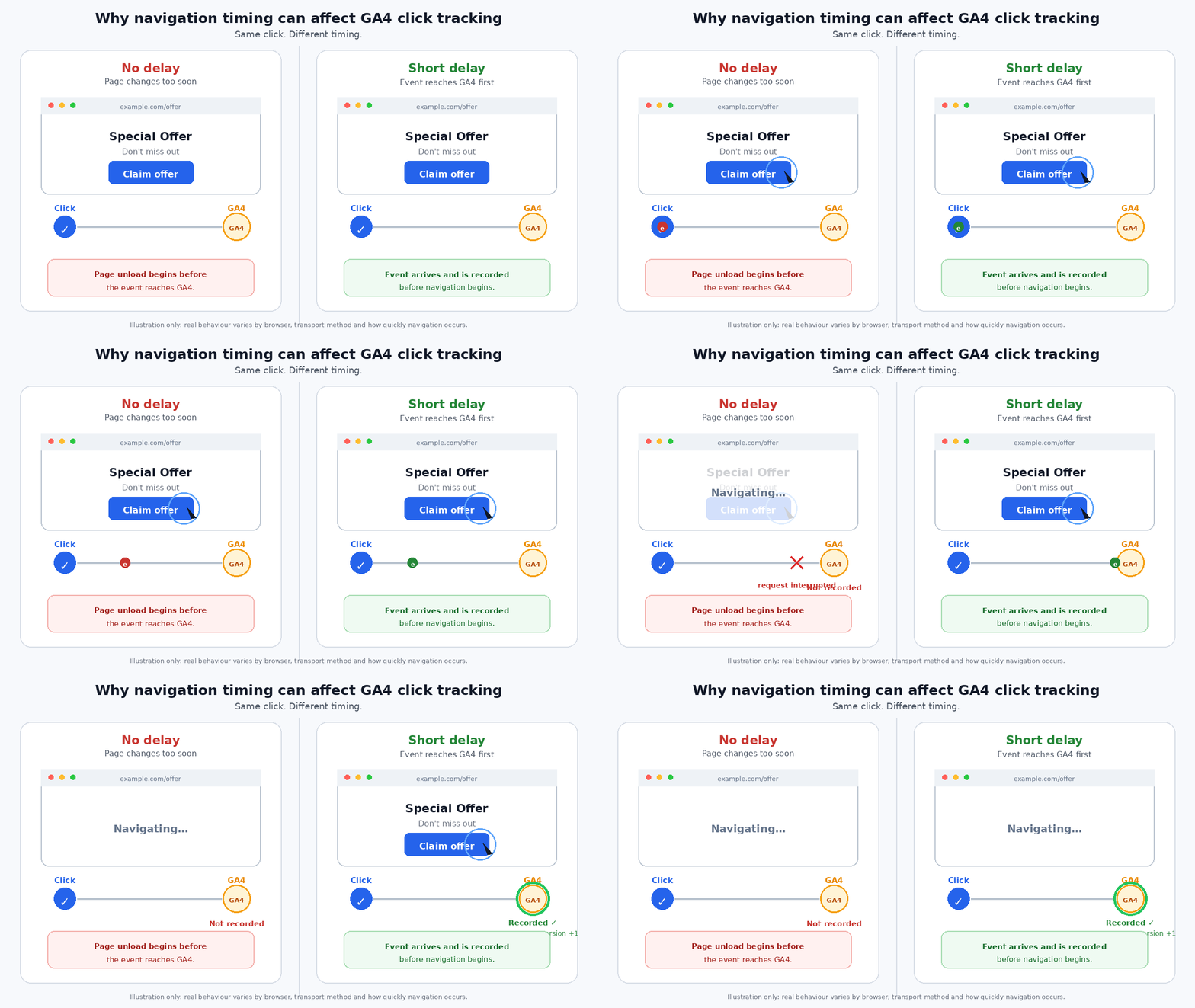
It can. Analytics requests are normally sent quickly and modern Google tags are designed to cope with navigation, but a browser can cancel outstanding work when a click immediately loads another document, closes the tab or exits the browser. A very fast transition therefore creates a risk that the event is not sent.
A client-side route change in a single-page application usually keeps the same document alive, so the click event is generally more reliable. It can still be lost if the tab or browser closes before the request is sent. Do not add an arbitrary delay to every link: it makes the site feel slower and still does not prove delivery. Prefer the normal GTM/Google tag behaviour, keep handlers lightweight, and test real navigation in GTM Preview and GA4 DebugView. If tracking is business-critical, record the successful destination or completed server-side outcome as well as the preceding click.
A click handler that calls preventDefault() and then fails can leave the visitor stuck. If you deliberately wait before navigating, keep the wait short, preserve modifier-key and new-tab behaviour, and always provide a timeout fallback.
Common click-tracking mistakes
- Counting twice: a GTM trigger and a hand-written listener both send the same action.
- Attaching twice: a component re-renders and adds another listener on every render.
-
Tracking the wrong node: the visitor clicks an icon or span inside the button; use
closest()when delegating events. -
Using unstable selectors: generated class names, positions such as
:nth-child(), and translated button text change unexpectedly. - Comparing unequal actions: the control tracks a link while the variant tracks a different step in the journey.
- Ignoring consent: analytics should respect the site's consent configuration and privacy requirements.
Test the tracking before starting the A/B test
- Use GTM Preview or browser developer tools to confirm one click produces one event.
- Check GA4 DebugView or Realtime and confirm the event name and parameters.
- Test the control and every variant on desktop and mobile.
- Test keyboard activation as well as pointer or touch input.
- Test links that navigate, links that open a new tab, and dynamically rendered elements.
- Confirm that somebody outside the experiment does not create an experiment conversion.
Keep A/B test click data comparable
A valid experiment comparison needs more than a working click listener. Both the control and variant must send an event for the equivalent action, even if the element's words, styling or HTML structure differ. If the new design introduces two calls to action where the control has one, decide in advance whether either click counts as the same KPI or whether the buttons need separate supporting events.
Where your testing platform does not add experiment information automatically, send stable experiment and variant identifiers as event parameters. Do not infer a visitor's variant later from the button text: copy changes, translations and content-management updates make that fragile. Also keep the experiment assignment event separate from the click event, so you have a reliable denominator when calculating click-through rate.
gtag('event', 'pricing_cta_click', {
  experiment_id: 'pricing_message_test',
  variant_id: 'variant_1',
  button_name: 'start_checkout'
});
Use users rather than raw event totals when the question is "How many visitors clicked?" A visitor can click the same button repeatedly, and raw click counts may make a version look stronger without producing more people who progress. Repeated clicks can still be useful for diagnosing confusion, so keep both measures available when possible. See how these measures fit into interpreting an A/B test result.
Allow for GA4 reporting behaviour
DebugView and Realtime are the right places for implementation checks, but standard GA4 reports and explorations can take longer to populate. An event missing from a normal report immediately after testing is not, by itself, proof that the tag failed. Confirm the live event first, then allow for processing time.
Ad blockers, browser privacy controls, consent choices and network failures mean client-side analytics will never be a perfect transaction ledger. Use click analytics to understand behaviour and experiment performance; use your checkout, CRM or server-side order records as the source of truth for money and completed business outcomes.
Track clicks in the FreeCROTool visual editor
The rest of this guide is specific to FreeCROTool. When creating a visual-editor A/B test, any element you can click to edit can have a Click Conversion attached to it. Select the element, enter a stable conversion name in the Interaction settings, save the change and test it in Staging. FreeCROTool applies the conversion consistently across the test variants and only reports it for a visitor who entered that test.
The selected element can also become a link to another page. The URL picker can discover links and pages from the page being edited. FreeCROTool can also retrieve known pages through the freecrotool.com backend and, when GA4 is connected, from page data seen in the previous 30 days. You can enter a custom URL or an in-page #fragment when the required destination is not listed.
When a visual-editor element has both a click conversion and a URL, FreeCROTool records the click before navigating and uses its built-in analytics helper delay for a document-changing URL. An in-page fragment changes the hash without loading a new document. Always verify both tracking and navigation in Staging.
FreeCROTool JavaScript event helpers
Developer-built tests can call three convenience methods. In the test editor, give each conversion a short, meaningful name and omit the test ID as shown below. FreeCROTool associates the conversion with the correct test and variant when the test is published. Each helper only sends the conversion when the visitor has already entered that test.
fireClickEvent
Use this for a named click that matters to the experiment.
document.querySelector('#start-checkout')?.addEventListener('click', function () {
  window.cro_tests.fireClickEvent({
    name: 'clicked_hero'
  });
});
firePageVisit
Use this when the visitor reaches a meaningful page or virtual route, such as a confirmation step. Do not fire it for every minor interface state.
window.cro_tests.firePageVisit({
  name: 'order_summary_page'
});
firePurchaseEvent
Fire a purchase only after the order is confirmed. Use a unique, stable transaction ID, an ISO 4217 currency code and a numeric value. The example order object is illustrative: replace it with trusted data from your checkout or confirmation page and never include customer personal information.
const completedOrder = {
  id: 'ORDER-10482',
  total: 79.95,
  currency: 'GBP'
};

window.cro_tests.firePurchaseEvent({
  name: 'purchase',
  transaction_id: completedOrder.id,
  value: completedOrder.total,
  currency: completedOrder.currency
});
These examples are for code placed in FreeCROTool's test editor. At runtime the published methods have the signature fireClickEvent(testID, eventData), firePageVisit(testID, eventData) and firePurchaseEvent(testID, eventData). Code placed outside the test editor must therefore pass the relevant test ID explicitly.
For the complete FreeCROTool developer API, including CSS helpers, DOM waiting and SPA-safe event delegation, bookmark the hand-coded A/B test helper reference.
Before publishing
- Keep the same conversion name for the full test.
- Confirm that one action creates one event in Staging and GA4 DebugView.
- Check control, every variant, matching locations and non-matching locations.
- Verify navigation, mobile, desktop, keyboard and consent behaviour.
- Use click data as supporting evidence unless the click itself is the true business outcome.